SPARE Act Compliance in the Mobile App
- October 26, 2026
- ServeManager
As we prepare for California's SPARE Act (AB 747) to go into effect on January 1, 2027, ServeManager is releasing a new update for the Mobile App to help process servers comply with the new diligence standards and maintain accurate gps information when creating their attempts.
Click here to read our blog post that outlines California's SPARE Act (AB 747)
At a glance, here is what is changing for California SPARE act jobs:
Requirements before you accept
- SPARE Act jobs are tagged in the inbox, and the accept screen lists every check the job will be scored on.
A live compliance score on every job
- Each job shows how many checks have passed and what still needs attention, updated as attempts come in.
Guided attempts
- The attempt form flags missing GPS, photo, service type, and description, and will not submit until the gaps are closed or explained.
Affidavit-ready descriptions
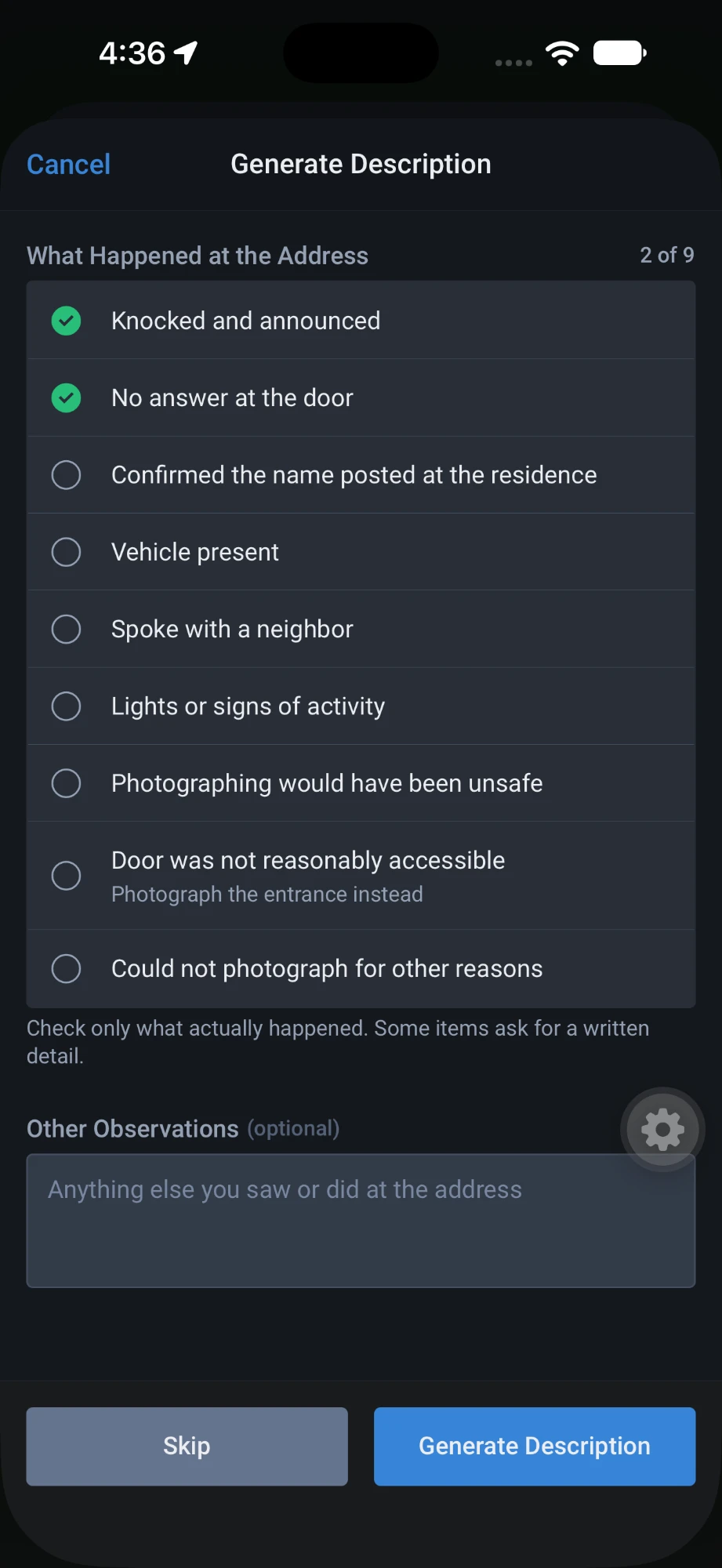
- A checklist of what happened at the address becomes a plain written description, with any declared exceptions on the record.
Why this update?
Servers had to know the rules by heart. California's SPARE Act sets specific due-diligence requirements for each attempt: GPS at the address, a photo of the door, the date and time, and a written account of what happened. Nothing in the app said which jobs fell under the act or what each attempt needed.
Gaps surfaced after the attempt was submitted, often when the affidavit was being prepared. By then the server had left the address and the evidence could not be recovered.
Before accepting the job
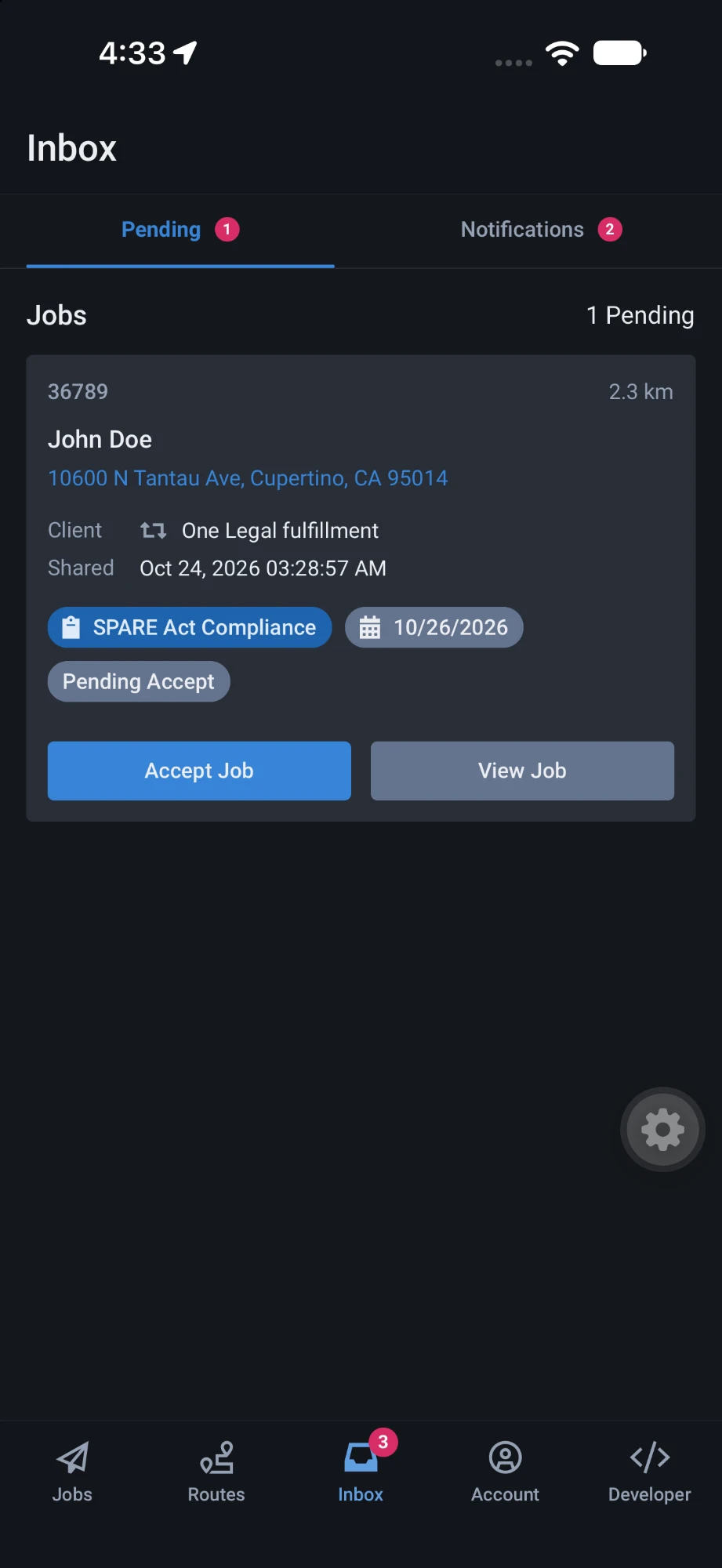
- Tag in the inbox. SPARE Act jobs carry a clipboard tag next to the due date and status, so they stand out before the job is opened.
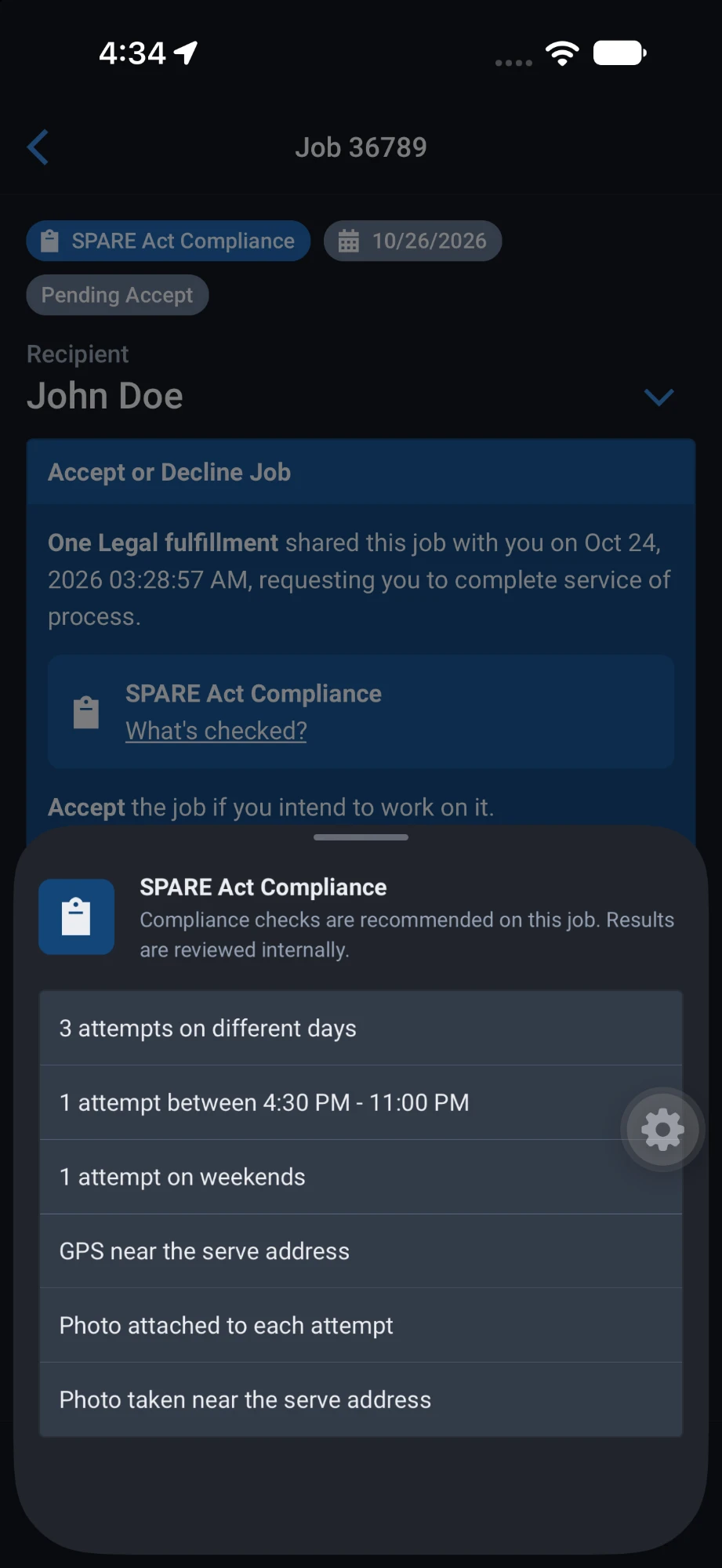
- Note on the accept screen. The Accept or Decline card includes a compliance note with a "What's checked?" link.
- Requirements sheet. Lists every check the job will be scored on, such as three attempts on different days, an evening attempt, a weekend attempt, GPS near the address, and a photo on each attempt.
On the job
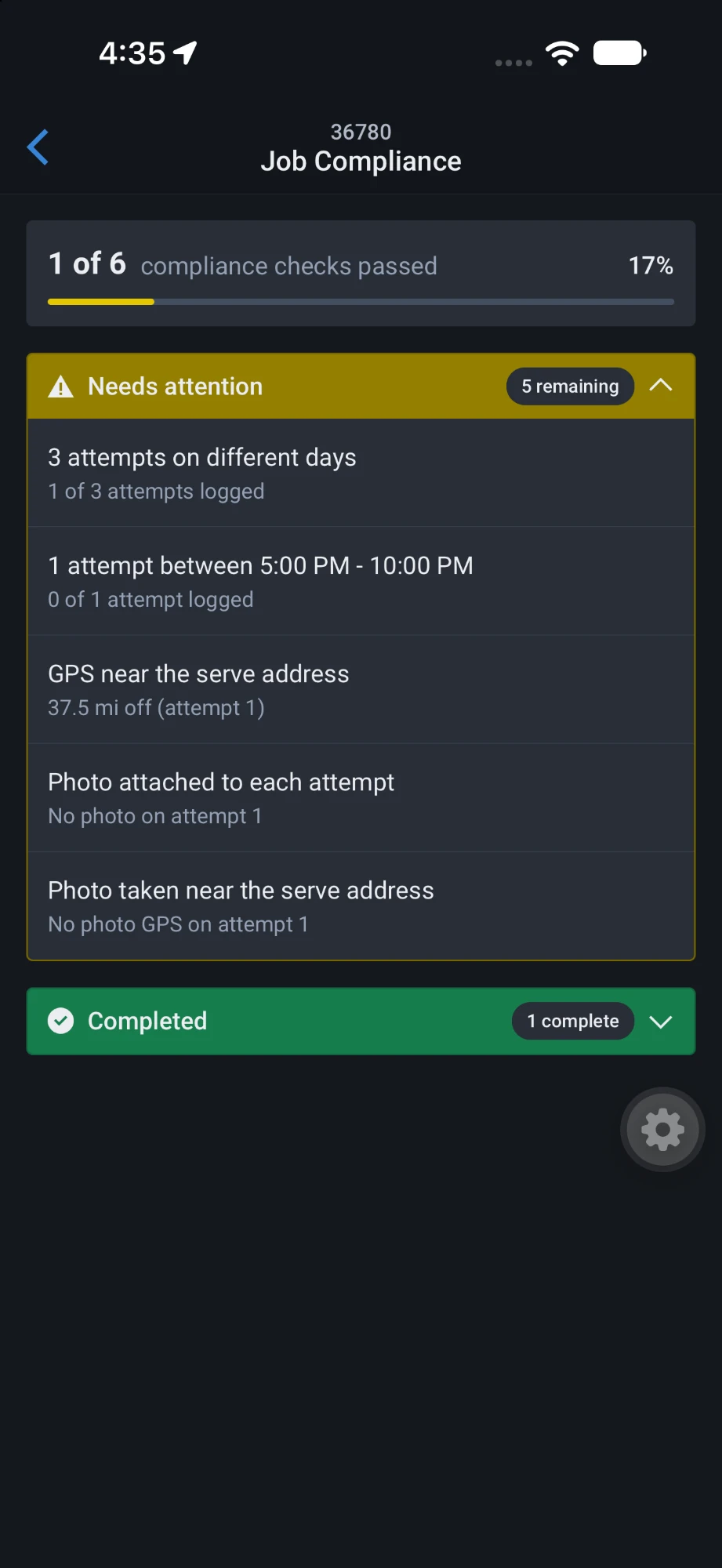
- Job Compliance card. Checks passed out of total, a percentage, and a progress bar. Yellow until every check passes, then green.
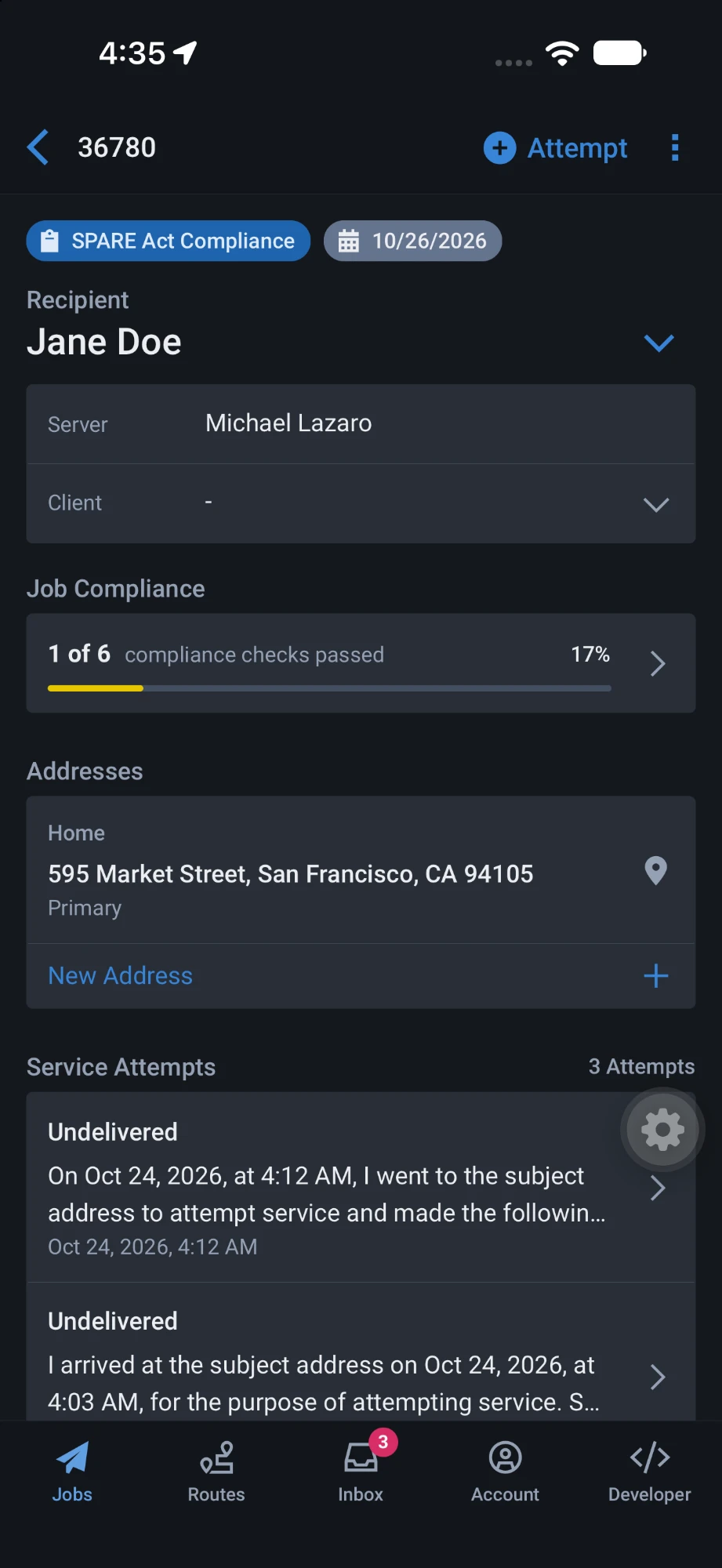
- Full breakdown. Tapping the card opens the list split into Needs attention and Completed. Each row says why it is open, for example "0 of 1 attempt logged" or "No photo on attempt 1".
- Refreshes on every visit. The score is recalculated by the backend each time the job is opened, so the server sees what each attempt changed.
During the attempt
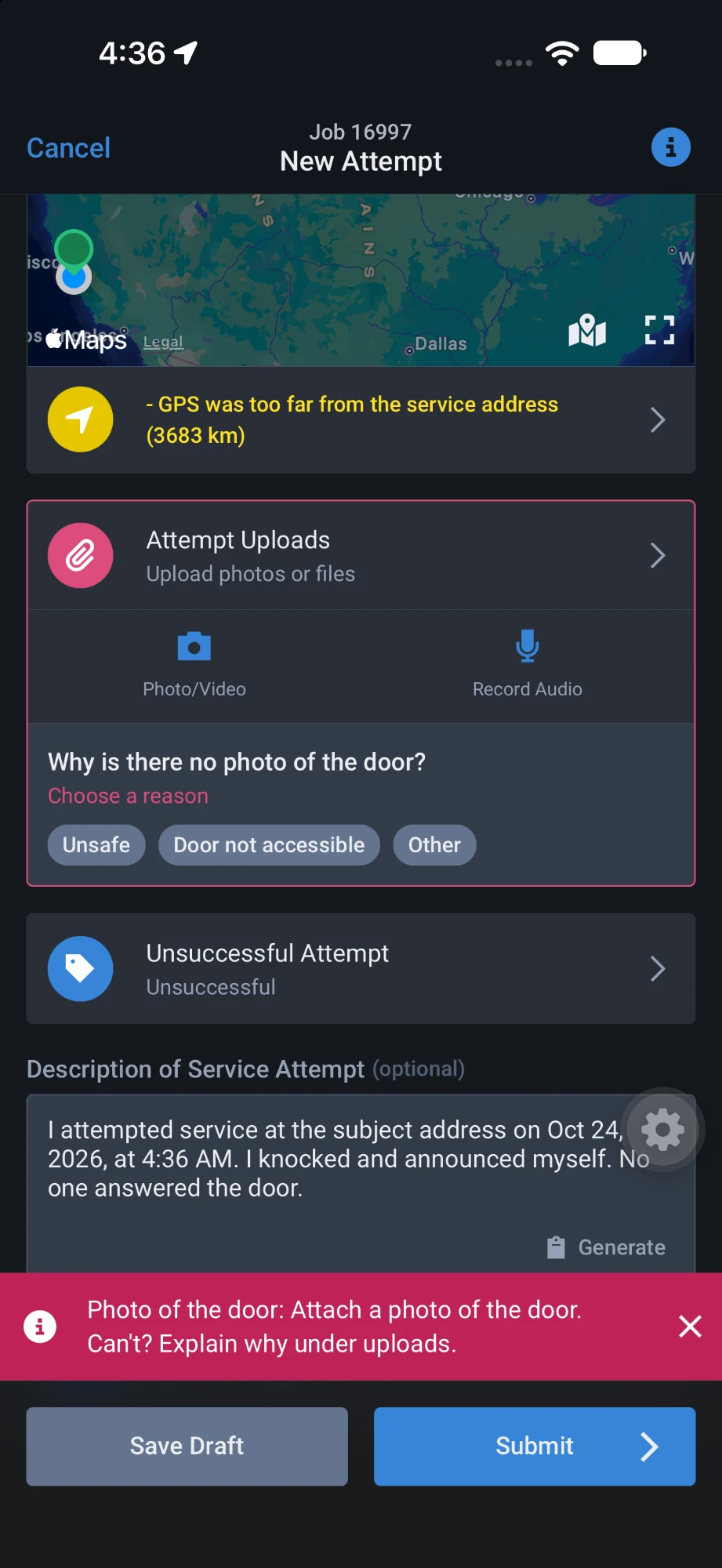
- Compliance Guidelines at the top of the form. The job's checks with their current state, so the server knows what this attempt needs to cover.
- Each section flags its gap. GPS, uploads, service type, and description show what is missing. A GPS lock far from the address is a yellow warning; missing evidence is a red block.
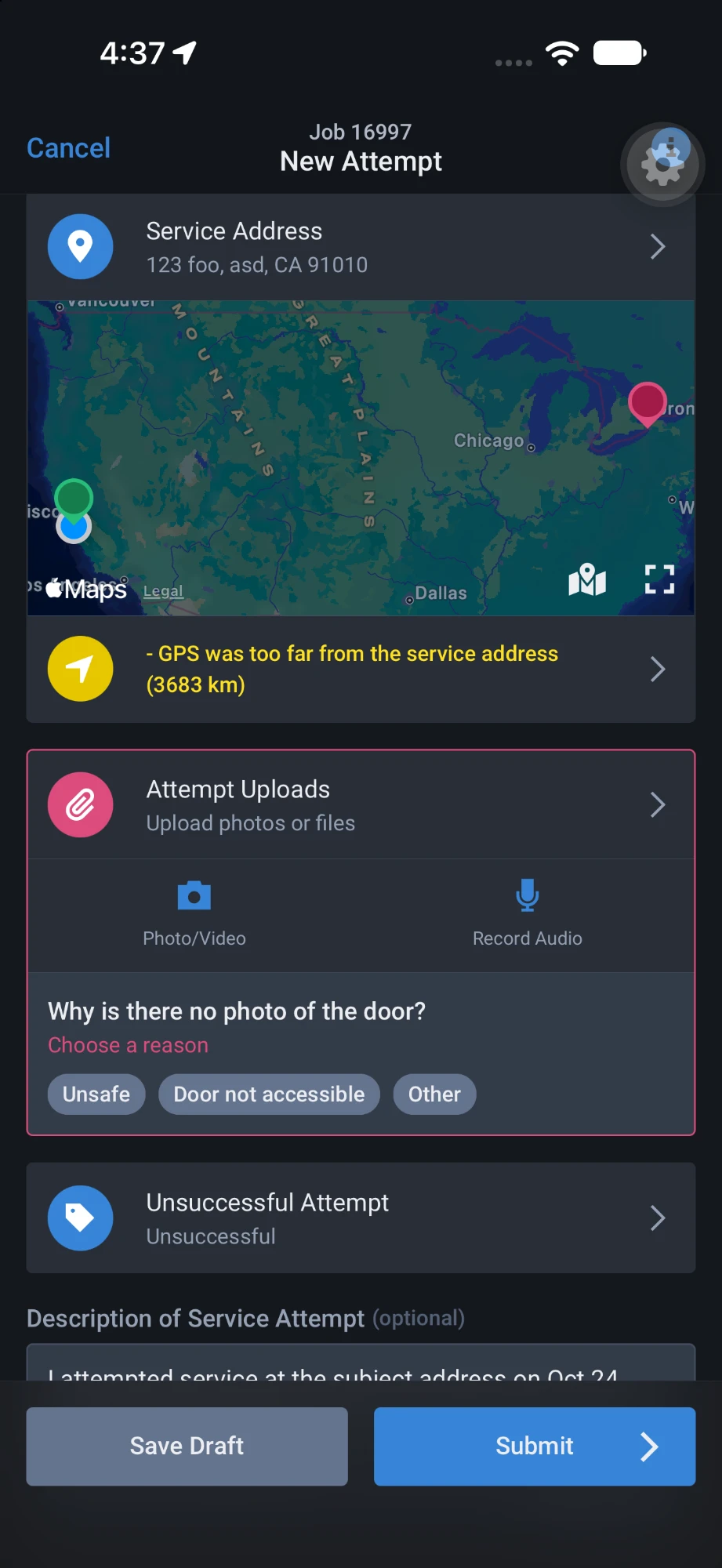
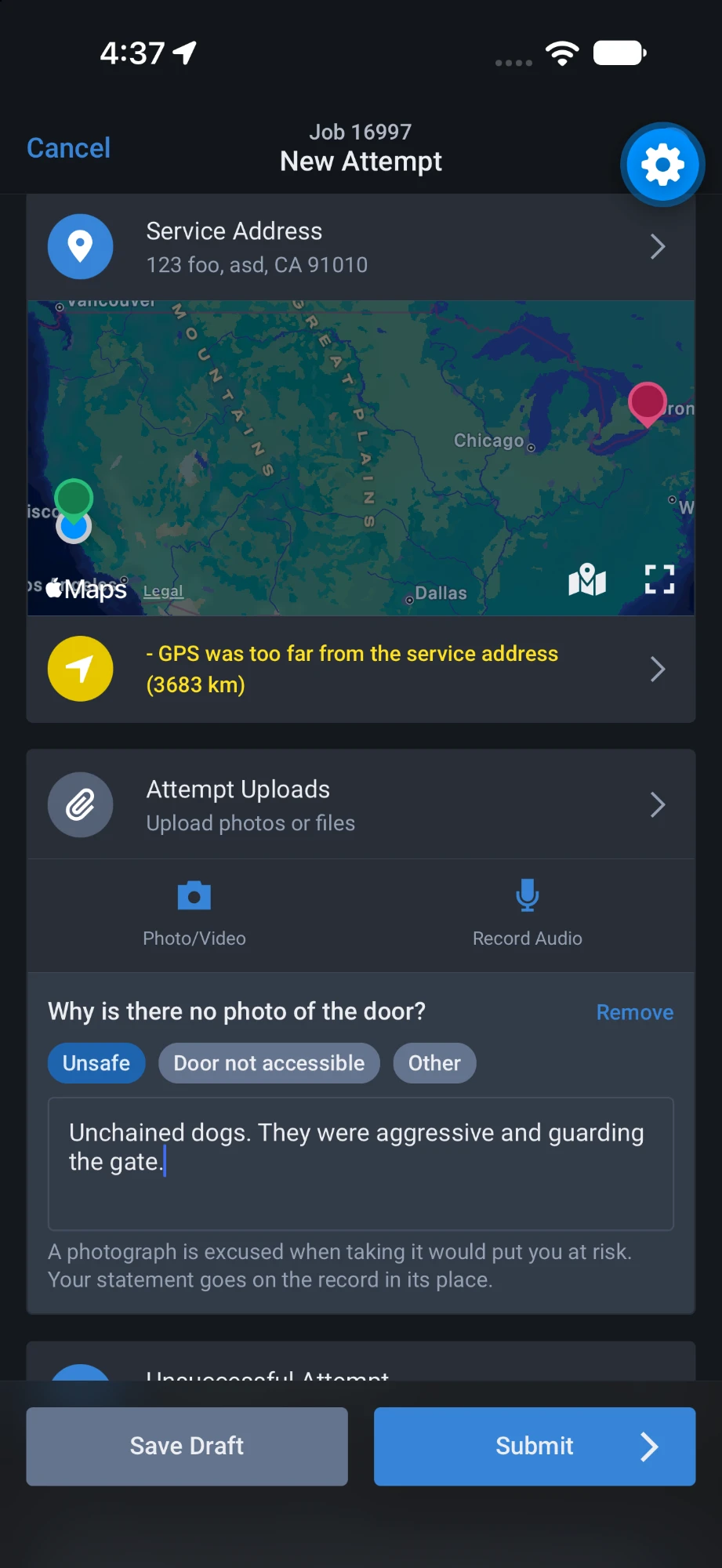
- Reasons instead of evidence, when justified. No photo: Unsafe, Door not accessible, or Other. No GPS: No signal. Each needs a short written statement. Door not accessible still expects a photo of the entrance.
- Generated description. Picking an unsuccessful outcome opens a checklist (knocked and announced, no answer, vehicle present, spoke with a neighbor). One tap turns it into a plain description with the date and time, which the server can edit.
- Blocked submit with a fix. On submit every check runs. A failing one shows a message naming the check and what to do, and scrolls the form to it.
- Watermarked photos. In-app photos on these jobs carry a GPS and time watermark, and the same data is written into the file for backend checks.
Which jobs have these features?
| Feature | Shows when |
|---|---|
| Tag, requirements sheet, Job Compliance card | The backend flags the job as a SPARE Act job and sends its requirements and score. |
| Attempt guidance and checks | Any of: the backend flags the job, the service address is in California, or the court for the case is in California. |
- New attempts only. Editing or retrying a submitted attempt does not re-run the checks.
- Bulk attempts follow the strictest job. If any selected job qualifies, the whole attempt is guided, with guidelines listed per job.
- Successful service is stricter. The photo must be taken where service was effected, the person served must be recorded, and no photo reason is accepted.
Reference
What each attempt is checked for
| Check | Passes when | If it fails |
|---|---|---|
| On-site GPS | GPS is locked at the address. | Blocked until locked, or No signal is declared with a reason. Locked but far from the address is a warning, not a block. |
| Photo of the door | At least one photo is attached. | Blocked until attached, or a reason is declared.Successful service: photo where service was effected, no reason accepted. |
| Service type | A service type is chosen. | Blocked until chosen. |
| Person served | Name and capacity recorded.Successful service only. | Blocked until recorded. |
| Description | At least 10 characters. | Blocked until written. Generate fills it in one tap. |
Reasons a server can't take a photo/capture gps
| Reason | Covers | What it excuses |
|---|---|---|
| Unsafe | Taking the photo would put the server at risk. | The door photo. The statement stands in its place. |
| Door not accessible | Gated complex, locked lobby, secured floor. | Nothing. A photo of the entrance is still required, plus the reason. |
| Other | Camera failure, no light, view blocked. | The door photo. The statement stands in its place. |
| No GPS signal | Device could not get a fix at the address. | The GPS coordinate. Photo, date, and time are still required. |
Every reason needs a statement of at least 10 characters. It is added to the attempt description and sent to the backend as a separate field for the affidavit.
Messages / Description
- Lock your GPS at the address. No signal? Explain it under the location.
- No GPS Lock
- No signal. Write why under the location, at least 10 characters.
- No-signal reason missing
- Attach a photo of the door. Can't? Explain why under uploads.
- No photo
- Door not accessible. Photograph the entrance or nearest access point.
- Door reason given, no photo
- Unsafe to photograph. Write why under uploads, at least 10 characters.
- Unsafe reason missing
- Attach a photo taken where service was effected.
- Successful service, no photo
- Choose the service type that matches the outcome.
- No service type
- Record the name and capacity of the person served.
- Served, no recipient
- Describe what happened at the address, at least 10 characters.
- No description
Common questions
"Why can't I submit?" A compliance check failed. The red message names the check. Attach the evidence, or declare a reason and write at least 10 characters.
"My job isn't a SPARE Act job but I see Compliance Guidelines." Attempt guidance also turns on for any job with a California service or court address. The tag and score only appear on jobs the backend flags.
"How do I remove a reason I declared?" Tap Remove next to the question in the uploads or location section.
"The score didn't change after my attempt." The score is recalculated when the job is reopened. Go back to the job list and open the job again.
"I edited an attempt and nothing was checked." Checks run on new attempts only.
"The description generator didn't open." It opens when an unsuccessful, non-service, or bad address service type is chosen. Use the Generate button under the description to open it any time.
App Update Links
Please contact us if you have any questions