Mobile App 1.22.7 Release Notes
- November 09, 2026
- ServeManager
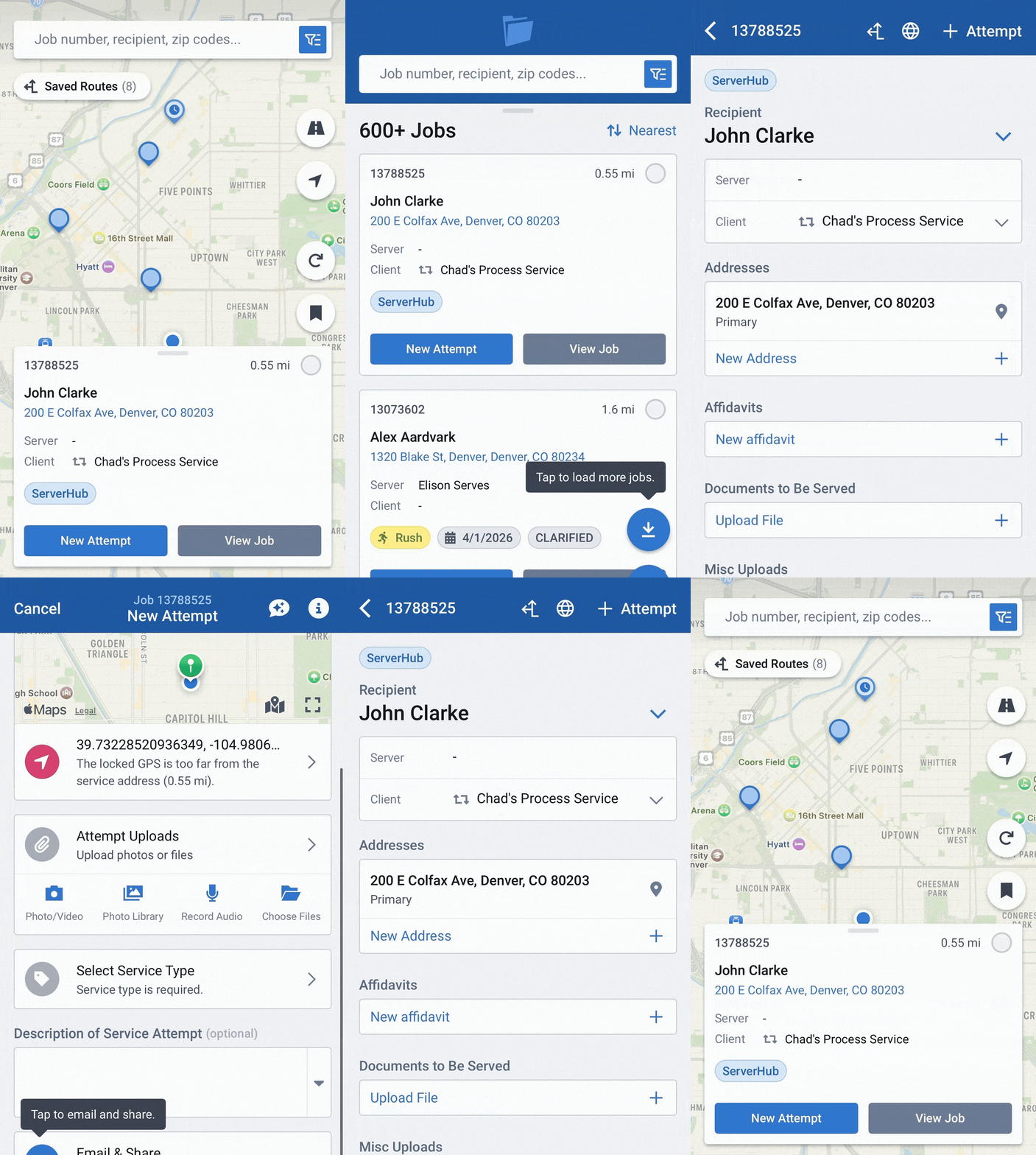
Version 1.22.7 of the ServeManager Mobile App is expected to release on November 7th, with notable improvements to the routing system based on feedback we received from the user base.
Version 1.22.7 will be the minimum version, so you will need to download this update in order to properly utilize the app during your daily operations.
What’s Changed
- Routing no longer reorders when you and your device move your location.
- Fix routing hand-off to map apps. Can now do current stop or multi-stop handoffs.
- Implemented GPS updates from previous release. Distance now shows average distance derived from straight and real time road distance.
- Improved filtering of jobs. Can now show, hide, and remove stops on the fly.
- Can now add or remove routed jobs from job map screen, but only when there's an active route
Routes tab
- One Routes list: your active route sits on top, then paused, saved, completed, and desktop routes. "+X more" shows the rest.
- Tap a route to get its actions: Continue, Pause, Reset Progress, Delete. Desktop routes can't be deleted from the app.
- Suggested route card shows stop count and total distance. Leave the tab, drive around, reopen the app: the distance should still be there.
- Progress reads "X of X jobs completed". Custom stops count as stops but not as jobs.
Active Route
- Now full screen, no tab bar. The header shows where you are, e.g. "1 of 3 stops (2 hidden)".
- Hide Stop skips a stop without deleting it. The list icon shows how many are hidden; unhide from there.
- Hide every stop and you get an "All Stops Hidden" message with a way to manage stops. Exit Route still works.
- Remove Stop asks to confirm. Removing the last stop deletes the route and takes you back to Routes.
- You can't remove a stop that has an attempt in progress.
- When every job has an attempt, a green "All jobs on this route are done." card appears.
Jobs tab
- Tap the route marker on a job card. You get a short "Added to active route" message with Undo instead of a confirm popup.
- Tap it again on a routed job to hide it from the route, again to restore it. Each has an option to Undo.
- Undo only works for a few seconds and does nothing if you are switching routes.
Navigate button
- Choose "Only this stop" or "All X stops". Google Maps takes up to 10 stops; above that you pick which ones. Waze takes one stop.
- Apps you don't have installed open in the browser instead.
- A third option when handing off to Apple Maps.